The Google Nexus 7 tablet resets expectations of what an inexpensive
tablet can and should be. Starting at $199, the Nexus 7 clearly guns for
Amazon's same-priced but lesser quality Kindle Fire, which runs
Amazon's limited flavor of Android. Make no mistake: Of today's 7-inch
Android tablets, the Nexus 7 is the one to beat, and it is handily one
of the best-executed Android tablets of any size you can buy. In some
ways, that's not saying much; for as much as it does well—it has a
tremendous 10-plus hour battery life, and it produces reasonably clear
text and accurate colors—the Nexus 7 stumbles by leaving out an
expansion slot. You need to step up to the 16GB $249 version for the
Nexus 7 to make a sensible purchase, and even then you'll be settling
short of the ideal tablet you really want.
The lack of a memory card slot hobbles Google's shiny new tablet
before you can even get moved in and set up. Android has always held a
big advantage over Apple's iOS in its ability to expand on-board storage
via a memory card; in fact, this is something that every tablet
competitor to the Nexus 7
but the
Amazon Kindle Fire (and Apple's
iPad,
natch) has. The Kindle Fire has taken lots of flack for providing a
baseline model with only 8GB of storage and no room to grow.

It's
not clear why Google opted to leave out the card slot. Cutting it may
be as much about Google's live-in-the-cloud philosophy and services as
it is Google and Nexus 7 manufacturer Asus trying to meet an aggressive
price. If it is indeed Google's emphasis on cloud services that's behind
this choice—and likely that's the case, given that Google bills the
Nexus 7 as being "Made for Google Play,"— that frankly makes Google's
despotism no better than Apple's decision to keep users in its walled
garden or Amazon's decision to force us to use its cloud services with
Kindle Fire.
Amazon, too, tried to spin its minimal on-board storage by saying
you could store media in, and stream content from, its cloud services.
That approach is not rooted in consumers' real-world usage patterns, and
it doesn't account for the vagaries of Wi-Fi availability and
bandwidth. Consumers crave off-line storage; we're still away from a
wireless connection often enough that local storage matters. No one
wants to have to keep managing their content on and off the tablet just
to work around a space limitation.
Given that we're seven months on from when Amazon's
first-generation Kindle Fire was introduced, I'm surprised and
disappointed that Google didn't push the default memory on Nexus 7 to
16GB in the $199 model. Now
that would have gotten our
collective attention, and rightly so. With Nexus 7 you're going to be
downloading movies and television shows in high-definition, plus using
apps optimized for high-definition displays and loading up your
high-resolution images for use in the gallery, so 8GB just won't go very
far. That amount of storage, with just 5.62GB of user accessible space
when you first start the tablet--is just too parsimonious to make the
Nexus 7 a truly solid recommendation. That's unfortunate, because the
Nexus 7 actually gets a lot right—far more than most of its Android
competition.
Nexus—Light and Comfy
When you pick up the Nexus 7, it's immediately apparent that it is
not like other inexpensive tablets. Its construction has a high-quality
look and feel; it doesn't have that inexpensive vibe you get from
handling other "value" tablets in the market. The side bezel is plastic,
with a textured, rubberized finish on the back that feels comfortable
in-hand, and yet won't attract dust or particles as some rubberized
backs we've seen (though it does seem to scratch fairly easily).


Another
thing you'll notice right away: this tablet is light enough that you
can hold it in one hand for extended periods. At 0.75 pounds, the tablet
is still about 0.2 pounds too heavy for no-thought-required one-handed
operation, as you find with the dedicated E Ink-based e-readers that now
weigh under half a pound. Still, the Nexus 7 is among the lightest
tablets we've seen, and more notably, it's 18 percent lighter than
Amazon's 0.91-pound Kindle Fire. The Samsung
Galaxy Tab 2 weighs about the same, at 0.76 pounds, and the
Toshiba Excite 7.7 weighs 0.77 pound (with its 0.7-inch larger display).

The Nexus 7's footprint is about average. It's slightly thinner
than the Kindle Fire (0.41 inch to 0.45 inch), and it's the same
thickness as the Excite 7.7. The Nexus 7 is slightly longer than some of
its competitors, too: it stands 7.8 inches tall, to Kindle Fire's 7.5
inches and the Samsung Galaxy Tab's 7.6 inches; the Excite is taller,
though, at 8.1 inches. The Nexus 7 is also a smidge narrower than
others, besting the Fire by 0.1-inch.

I find the dimensions of the Nexus 7 convenient and pleasing; at
7-inches, this tablet was unobtrusive to use in cafes or on public
transit, and its dimensions made it easy to thumb-type on the on-screen
keyboard in portrait orientation. Still, in spite of what the numbers
say, I prefer how the Excite 7.7's feels in my hands; it seems more
balanced, thinner, and lighter than the Nexus 7, in spite of the specs
saying otherwise.
Other aspects of the physical design are noteworthy, too. The
power/sleep and volume buttons along the curved right-hand bezel are
sturdy and easy to press. Along the bottom bezel sits the headphone jack
and a MicroUSB port, for charging the tablet as well as transferring
data from your PC.
Above the ports is an approximately two-inch wide stereo speakers
port (both speakers outlet from the same single port, as on the
Asus Transformer Infinity TF700).
The speaker location along the bottom doesn't seem to adversely impact
audio playback; it could get covered by your hands if you hold the
tablet two-handed in horizontal mode, but not if if you hold it along
the bottom edge, as opposed to the center.
At the bottom left is a four-pin connector that Google says could
be used for a dock, though no accessories appear to be available for the
Nexus 7 at the time of this writing. Other hardware features include a
1.2-megapixel front-facing camera, and an NFC chip, which comes in handy
for use with Android Beam if you happen to have another NFC-enabled
Android device available.
The front face is smooth scratch-resistant Corning glass (but not Corning's
Gorilla Glass).
The glass is optically bonded to the 7-inch, 1280 by 800 pixel display,
and this makes a tremendous difference in the image quality. With no
air gap in play, text looks crisper, contrast is better, and glare is
mitigated (although not eliminated). At 216 pixels per inch, the Nexus 7
is clearly way ahead of other 7-inch tablets' pixel density of 170 ppi,
and the difference is palpable.
This is the third 7-inch tablet with a 1280 by 800 display. Oddly,
Google appears to have tweaked the fonts in Android 4.1 and text
rendering in the Chrome browser is very different than in the original
Android Honeycomb (3.0) and Ice Cream Sandwich (4.0) browsers. The
Nexus's tweaks lead to text that is visibly far superior to what we see
on say, Galaxy Tab 2 or Amazon Kindle Fire, but is still sadly very
jaggy and lacks the smoothness of "Retina" displays as on Apple's
iPhone
and iPad (which has 264 ppi), or even the smoother text rendering seen
on Android 3.2 and Android 4.0 tablets. I'd have to say that Nexus 7's
display bests that of
Toshiba's Thrive 7 and
T-Mobile's Springboard; both shipped last year with the same resolution display, but each had a noticeable air gap and produced poorer colors.
I am impressed with how Nexus 7 handled the test images in our
image quality tests. Color reproduction is pleasing and fairly accurate,
although Android appears to still struggle with accurately reproducing
skin tones.
High Performance: Inside the Nexus 7
The Nexus 7 is the first tablet to use Nvidia's Kai reference
platform. Kai was designed specifically to reduce the cost of producing a
tablet without sacrificing performance. It would appear that the Nexus 7
achieves this goal, based on its performance on our tablet benchmarks.
Inside, the Nexus 7 carries a 1.2GHz quad-core Nvidia Tegra 3 T30L
processor; it runs at 1.3GHz in single-core operation. Those are the
same frequencies as found on the new Acer
Iconia Tab A700,
but Nvidia can't comment on whether everything about the Tegra 3 inside
the Nexus 7 is the same as on the A700. The tablet also has 1GB of DDR3
memory.
The Nexus 7 lasted an astounding 10 hours, 10 minutes in our video playback test, with brightness set to 200 cd/m
2
(candelas per square meter). That's just 36 minutes shy of the Apple
iPad, and it tops all competing 7-inch tablets by a mile. Amazon's
Kindle Fire lasted 6 hours, 54 minutes; Samsung's Galaxy Tab 2 7.0
lasted 6 hours, 20 minutes; the Toshiba Excite 7.7 lasted 7 hours, 32
minutes; and the Sprint ZTE Optik lasted 5 hours, 51 minutes. That
figure is also competitive with 10.1-inch Android tablets; Acer's Iconia
Tab A700 lasted 8 hours, 11 minutes; Toshiba's Excite 10 lasted 7
hours, 5 minutes; the Samsung Galaxy Tab 2 10.1 lasted 11 hours, 41
minutes; and the Asus Transformer Pad Infinity lasted 7 hours, 58
minutes.
Unfortunately, the Nexus 7 also took the longest of any 7-inch
class tablets to recharge, requiring 3 hours, 49 minutes to fully juice
up, compared with the Galaxy Tab 2's 3 hours, 32 minutes and the Toshiba
Excite 7.7's 3 hours, 21 minutes. This result might reflect the fact
that the Nexus 7 charges via its MicroUSB port.
The Nexus 7 excelled on our benchmarks. It was the best performer
of any of our 7-inch class tablets; and was competitive on some tests
with the top 10.1-inch Android tablets. Its performance on Geekbench,
for example, was nearly four times better than that of the Galaxy Tab 2
7.0; and it bested Toshiba's Excite 7.7, too. Interestingly, though it
was close to the Acer Iconia Tab A700 on this test, it outperformed the
Acer on some of our metrics and fared worse on others. Both tablets run
an Nvidia Tegra 3 at the same clock speed, so these variances could be
due to tweaks in the Tegra 3 chip or other unknown variables.
On our two GLBenchmark 2.1.4 tests, the Nexus 7 was an average
performer. It logged the sixth-highest score we've seen on Egypt
Offscreen, at 63 frames per second; by comparison, Asus
Transformer Pad Infinity
logged 74 fps, and iPad logged 139 fps. On the Pro Offscreen test, the
Nexus 7 was fifth highest, at 82 fps, as compared with 96 fps for the
Infinity and 139 fps for the iPad. For perspective, the Kindle Fire
lagged far behind, scoring just 23 fps and 31 fps, respectively, on
Egypt Offscreen and Pro Offscreen.
The Nexus 7's performance on our Web browser-based tests was
mixed. It was the fastest performer of our field on Sunspider, requiring
just 1.71 seconds to complete that benchmark; but it was among the
slower performers on a custom, media-heavy Web page load test.
In use, I found the Nexus 7 fast and responsive. I especially
liked the dramatically improved keyboard, which seemed better able to
keep up with my flying fingers.
Software: Jelly Bean Tweaks Android Again
The Nexus 7 is the first tablet with Android 4.1 Jelly Bean, and the
differences between Ice Cream Sandwich and Jelly Bean on tablets are a
lot greater than Google first let on. For my comparisons with ICS
tablets below, I used Samsung's Galaxy Tab 2 (which also has a custom
overlay), Asus's Transformer Pad Infinity TF700, Acer's Iconia Tab A700,
and Toshiba's Excite tablets (7.7, 10, and 13).

The changes are evident as soon as you start up the tablet and see
the Welcome screen. The new Android 4.1 Welcome screen and its ensuing
setup walkthrough and first-time-use pop-up explanations are incredibly
friendly for newcomers, with big, bold lettering and a clean design.
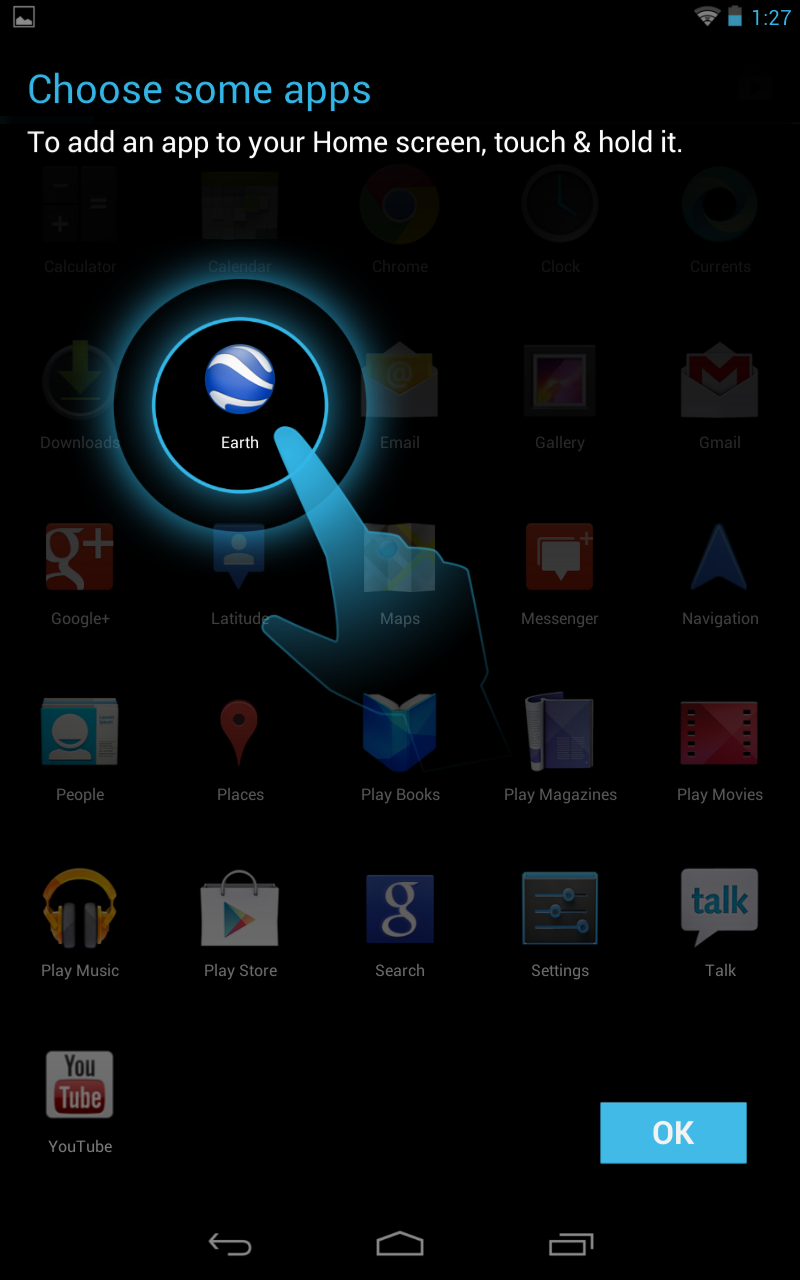
That clean design continues with the Android 4.1 home screen,
which reflects numerous changes to the Android experience on a 7-inch tablet.

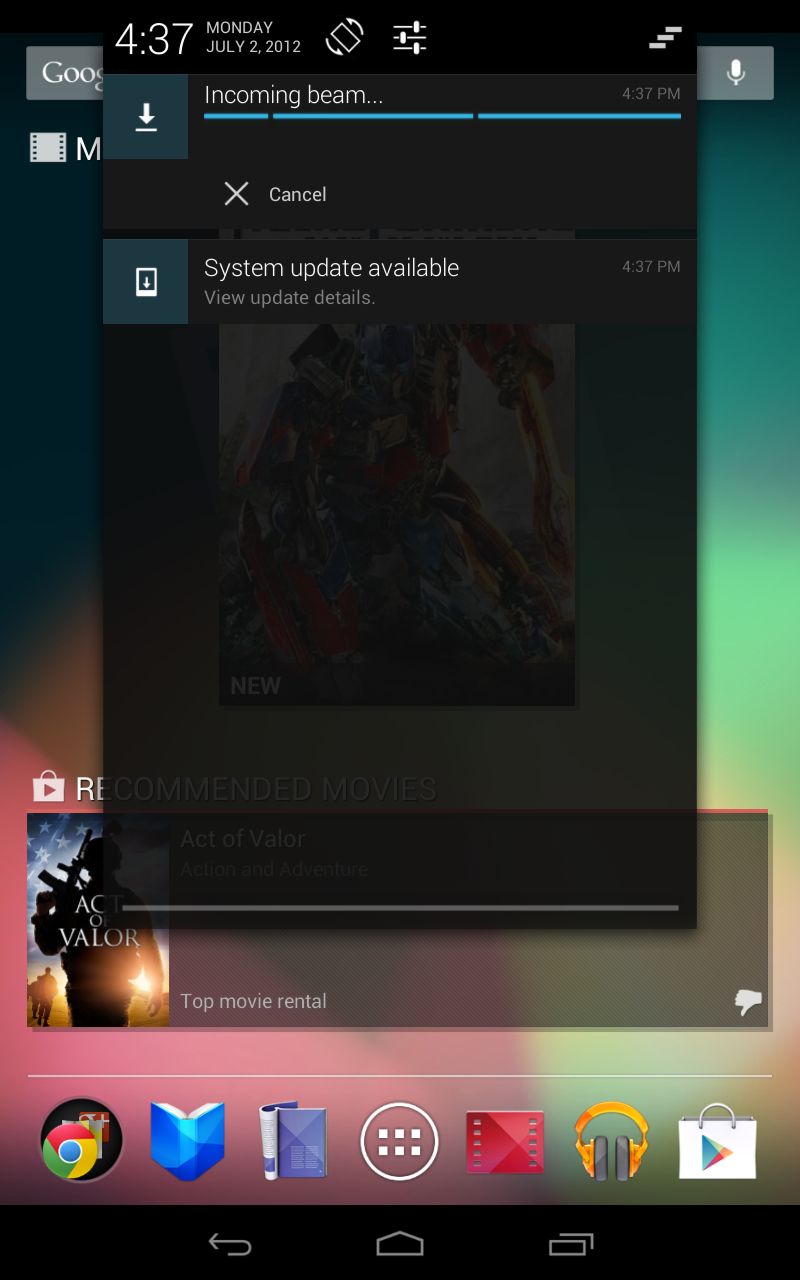
For one thing, Google has refreshed the home screen with changes
both minor and dramatic. A nifty Google launcher runs along the bottom,
with five basic Google app icons--for Play Books, Play Magazines, Play
Movies & TV, Play Music, and the Play Store--and a folder packed
with 11 other native Google apps, including the Chrome Web browser which
now replaces the previous "Browser" app. At the center of this launcher
bar is the new menu icon, which is the only one of the seven icons
that's fixed; you can swap out the others for other apps of your choice,
or for folders of apps you choose.
Google has shaken up the design of its core navigation and status
buttons, in order to reorient everything around the portrait position.
Google expects 7-inch tablets to be used more in portrait mode than
anything else. This explains the move of the three nav buttons (back,
home, and recent apps) from their former location flush left to their
new locale, spread out along the bottom center of the display. The clock
and notifications, meanwhile, move from the lower right of the display
to the top of the screen. To gain access to the notifications or
settings, you must slide down the "shader" from the top of the display.
After the clean simplicity of the notifications pop-up on the lower
right of the screen, this new design is hard to get used to. Pulling
down the shader reveals a larger clock, a rotation lock soft-touch
button, and a settings shortcut. Though cleaner than the pull-down
Google provided on the early Froyo-based Galaxy Tab, the effect is the
same: It makes the Nexus 7 feel more like a phone than a tablet.
Other interface tweaks contribute to making the Nexus 7 feel more
like a giant phone than a tablet. The home and menu screens are fixed in
portrait orientation, which can be jarring if you're moving from
watching a video to doing something else on the tablet. And in the
settings menu, you no longer have panes in portrait mode; this change
makes it faster to navigate among settings options. Also gone is the
battery life percentage; you get just an icon now.

Many of these tweaks annoyed me greatly, since I was accustomed to the features offered on Android 3.
x/Android
4.0 tablets; they made it more difficult to reach some features, and I
prefer the simplicity of a tap versus a pull-down shader for accessing
more menu options. Google says that the former layout should be what we
see on future 10.1-inch Android 4.1 tablets, but I missed that design on
the 7-inch size. I did like the new set of Play widgets for surfacing
content from My Library, My Books, My Magazines, My Movies, and My
Music, but I was less satisfied with the recommendations widgets. The
beauty of Android is that you have the choice to customize the home
screen, and you get customization in spades. Widgets are more resizable
now; and in addition to the Google Play widgets, you get a handy new
widget for quick access to wireless, rotation, and brightness
controls--plus another one for using Android 4.1's new music identifier.
The music ID worked successfully with most of the music I threw at it,
struggling only with beat-heavy areas of dance tracks and some obscure
world music choices from Croatia, Japan, and Poland.
At the top of the home screen sits the Google Now bar, with a
handy introduction to the Google Now search services, and a microphone
icon for initiating voice searches.
One more change for the better: The Google Nexus 7's native image
gallery has improved image rendering as compared with Android 4.0 and
3.2. I noticed that images regained full sharpness more quickly than
before, a critical feature when you actively use the gallery to show off
your pictures.
Unfortunately, Nexus 7 also shows one of Android uglier sides--the
pain of OS and device fragmentation. I encountered some tablet apps
that wouldn't work on the Nexus, raising the old issues involving
Android's app availability and compatibility. Android 4.1 goes a long
way toward improving Android's usability--in spite of the aforementioned
portrait mode and nav button mess--but it doesn't solve some of the
underlying problems, either.
Bottom Line
Google succeeds at shooting Amazon's Kindle Fire out of the sky; the
company has delivered a superior piece of hardware at the same starting
price. The Nexus 7 also beats out the same-priced Samsung Galaxy Tab 2
(an Android 4.0 tablet with lesser performance and half the storage, but
with a MicroSD card slot), and it beats out Barnes & Noble's
limited Nook Tablet (which adds a MicroSD slot, but is restricted by
B&N's custom Android version and the apps approved for it). I like
the feel and design of the Toshiba Excite 7.7 better, but that model
costs twice as much as the 16GB Nexus 7. Google hasn't positioned the
Nexus as an iPad killer, but it's worth noting that the Nexus's price is
a 38 percent savings over the cost of getting a larger-screen,
same-size
iPad 2, and a 50 percent savings over a third-generation iPad.
The Google Nexus 7 tablet is simply the best 7-inch tablet you can
buy today. It performs well, but its mixed display performance and lack
of a MicroSD card slot prevent it from eliciting unequivocal
enthusiasm. Ultimately, the 8GB Nexus 7 is the best tablet you shouldn't
buy today; although, that said, its relatively low price will soften
the blow when you outgrow the Nexus 7's limitations and want to step up
to another model in six months' time. At 16GB, the Nexus 7 becomes an
affordably priced starter tablet that provides terrific battery life,
solid performance, and the latest full-court version of Android. But
beware of the storage limitations; they might be a deal breaker for
anyone with a large media collection or a desire to download movies and
TV shows from Google Play.
Source:
http://www.pcworld.com/article/258772/google_nexus_7_tablet_review_solid_but_not_revolutionary.html
 by
53
by
53


 If you’re a long-time Gmail user, you no doubt know about and/or use Google Voice
— a free web-based platform that provides users with an online phone
number for making calls online via an Android, BlackBerry, and now the
iPhone. If you don’t have a Google Voice number set up, you’re missing
out on a very useful contact tool. Check out Ryan Dube’s 5 Cool Things You Can Do With Google Voice for more details.
If you’re a long-time Gmail user, you no doubt know about and/or use Google Voice
— a free web-based platform that provides users with an online phone
number for making calls online via an Android, BlackBerry, and now the
iPhone. If you don’t have a Google Voice number set up, you’re missing
out on a very useful contact tool. Check out Ryan Dube’s 5 Cool Things You Can Do With Google Voice for more details.